
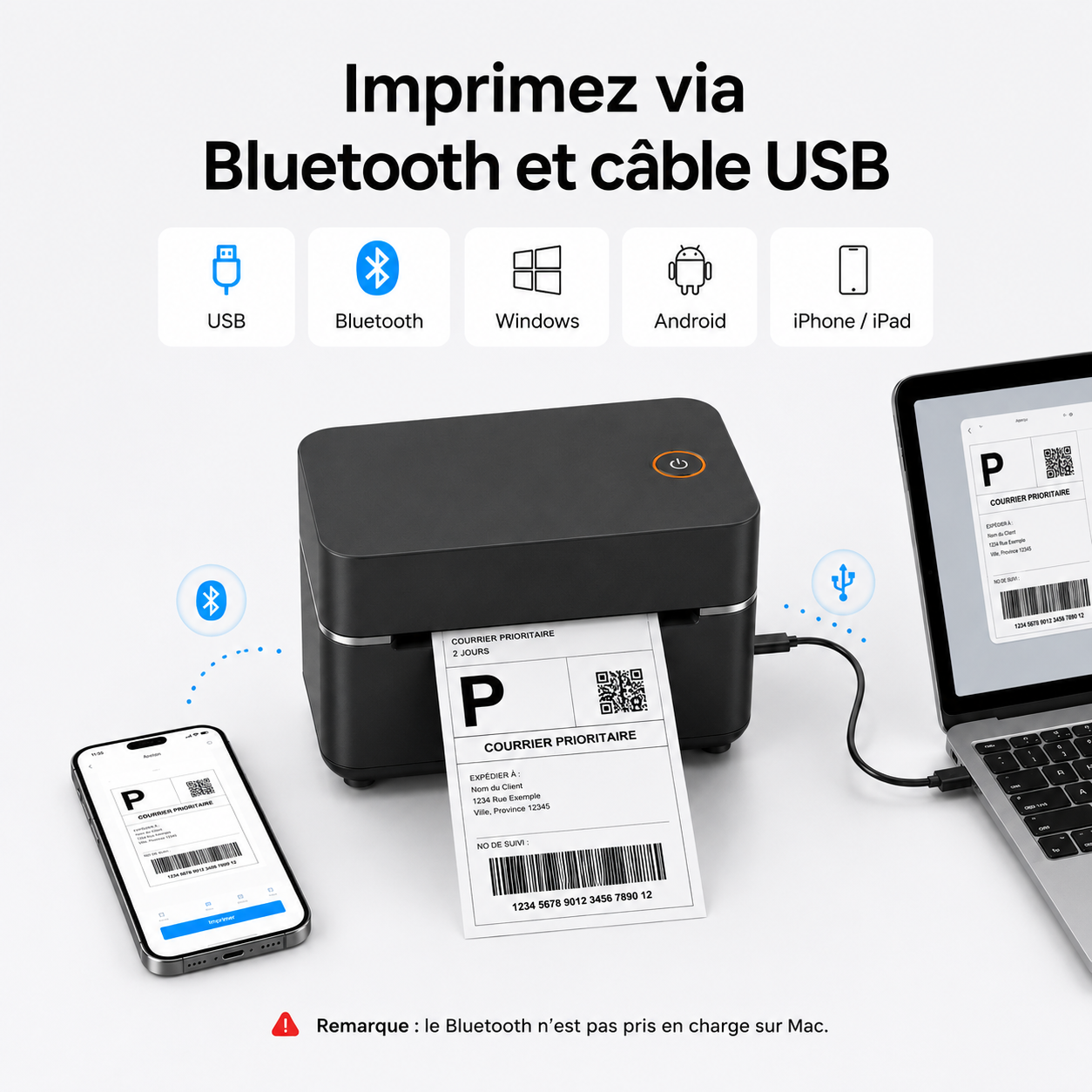
In brief: a Bluetooth thermal printer receives a file from your smartphone and prints it on a thermal label without ink or toner. On iPhone and Android, the connection generally goes through the manufacturer’s app. On Mac and Windows, USB is often the most stable method.
How does a Bluetooth thermal printer work?
The printer selectively heats the thermal paper to display text, logos, and barcodes. Bluetooth transmits the document to the device; it does not replace the driver or app that prepares the print job.
The Metashopper Bluetooth thermal printer supports labels between 30 and 110 mm wide, including the 100 × 150 mm shipping format.
Connection on iPhone
- Connect and turn on the printer.
- Turn on the iPhone’s Bluetooth.
- Install the app indicated in the guide or via the provided QR code.
- Open the app and select the printer from the list of devices.
- Download your PDF shipping label from Vinted, Shopify, Amazon, or the carrier’s website.
- Import the PDF into the app, choose 100 × 150 mm, then start printing.
Important: if the printer does not appear directly in iOS Bluetooth settings, open the app first. Some printers are detected and paired from within the app itself.
Connection on Android
- Turn on Bluetooth and allow the app to detect nearby devices.
- Open the printing app.
- Select the thermal printer.
- Import the PDF shipping label.
- Set the size to 100 × 150 mm and the scale to 100%.
- Check the preview, then print.
On Android, location or nearby device permission may be requested to detect Bluetooth devices. This request depends on the system version and does not mean that the printer uses your location to print.
Installation on Windows
- Connect the printer to the PC with the USB cable.
- Install the driver corresponding to the model.
- Open the Windows printer settings and verify that the device is recognized.
- Set a custom paper size of 100 × 150 mm if it does not already exist.
- Print a test page before your first shipping label.
In the PDF print window, choose Actual size or 100%. Avoid “Fit to page” when the file is already the correct size.
Installation on Mac
Connect the printer via USB, install the supplied driver if necessary, then add it in the “Printers & Scanners” settings. Next, create the 100 × 150 mm size and check the portrait orientation.
What settings should you use for a package label?
| Setting | Recommended value |
|---|---|
| Dimensions | 100 × 150 mm |
| Scale | 100% / Actual size |
| Orientation | Portrait, unless otherwise specified |
| Margins | None or minimal |
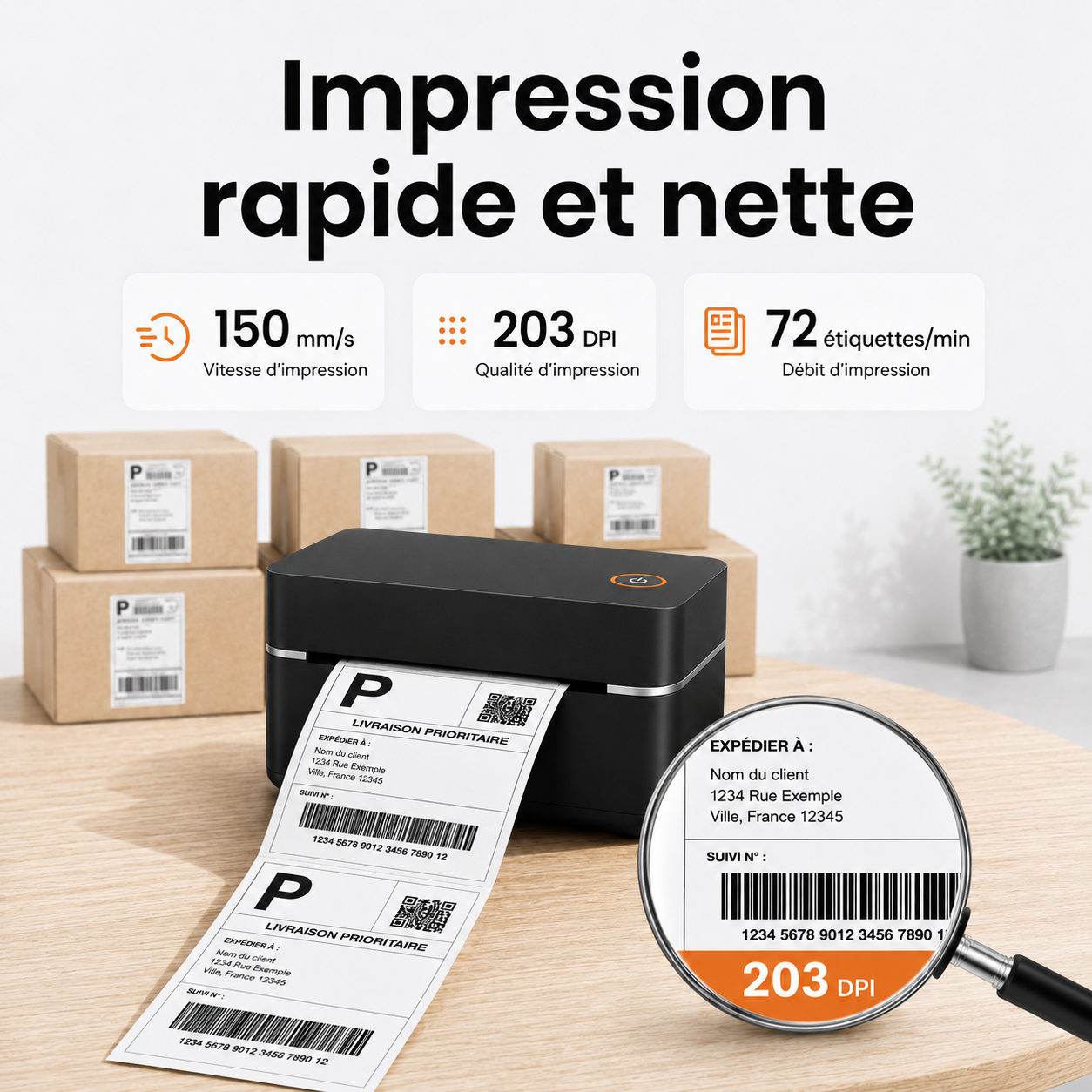
| Quality | 203 DPI for the Metashopper printer |
Why won't the Bluetooth printer connect?
- It is already paired with another device: disable Bluetooth on the old phone.
- The app does not have the required permissions: allow detection of nearby devices.
- The printer is offline: check the power supply, paper, and that the cover is closed.
- The file will not open: download the PDF locally before importing it.
- The wrong size is selected: choose 100 × 150 mm for a 4×6 shipping label.
FAQ
Can you print directly from Vinted?
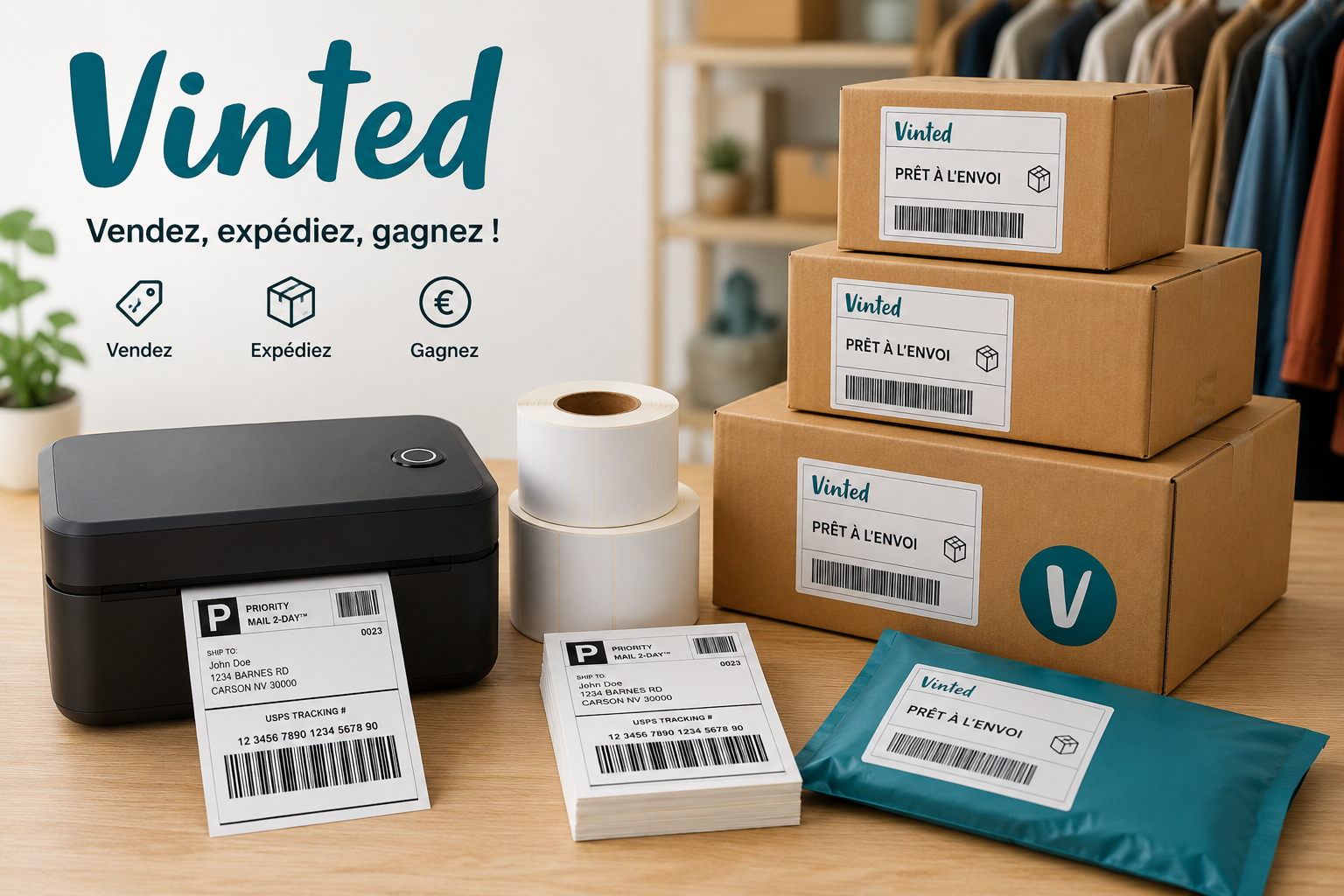
First download the PDF shipping label from the Vinted sale, then open it in the printing app. Also see our Vinted label printing guide.
Does Bluetooth work with a computer?
It depends on the system, driver, and model. For daily use on Mac or Windows, USB generally offers a simple and stable connection.
Do you need to buy ink?
No. A direct thermal printer works with compatible thermal labels, without ink cartridges or toner.
Key takeaway
To make a great first impression, focus on three points: use the right app or driver, select the exact 100 × 150 mm size, and print at 100%. Once these settings are saved, subsequent prints become much faster.

Leave a comment
This site is protected by hCaptcha and the hCaptcha Privacy Policy and Terms of Service apply.